
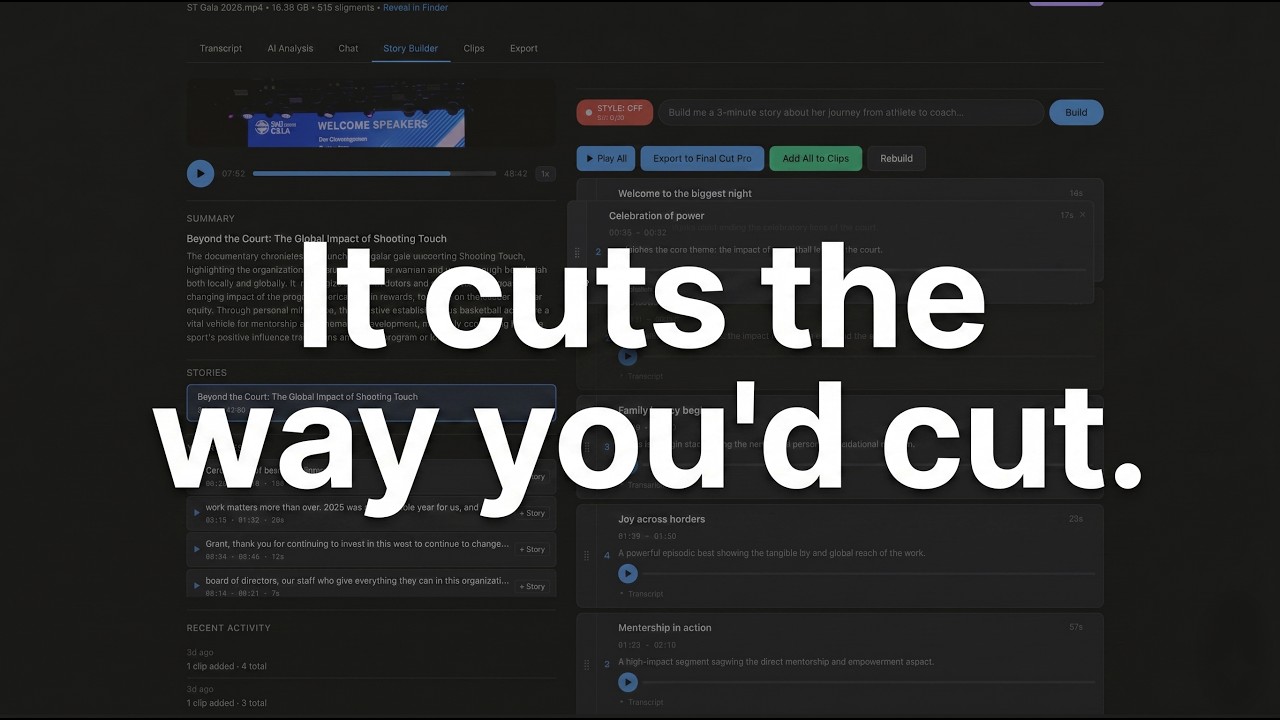
An AI editor's assistant that learns your style from your own cuts, then does the first pass for you. Not a generic model. Not trained on someone else's taste. Yours.
Drop in an interview. Get back a rough cut shaped by your editorial voice, ready for Final Cut Pro, Premiere Pro, or DaVinci Resolve. Everything runs on your machine. Nothing uploads. Free and open source under MIT.
Editorial DNA is the whole point. Feed the app your finished work and it builds a profile of how you shape spoken stories: pacing, opening patterns, structural habits, tonal choices. Every suggestion after that gets filtered through your voice. Build multiple profiles for different kinds of work. A documentary profile. A social cuts profile. A corporate testimonial profile. It's fully in the open source version. No paywall.
Built for documentary editors first, because that's where the pain is sharpest and the craft is most refined. Works just as well for anyone cutting interview-driven video: corporate case studies, podcast-to-video, branded docs, event highlights, long-form creator work. If someone's talking on camera and you need the moments that carry the story, this tool does the heavy lifting.
I'm a documentary filmmaker and I needed a way to find story beats and soundbites across hours of interview footage without uploading client material to cloud services. Existing tools were either too expensive, too slow, or required sending sensitive footage to third-party servers. So I built something that runs entirely on my Mac, uses AI locally, and exports directly to whichever NLE you're cutting in — Final Cut Pro, Premiere Pro, or DaVinci Resolve.
The core idea: most AI editors sound generic because they've never seen your work. My Style fixes that. You feed Doza Assist the finished pieces you've already cut, and it learns the way you shape spoken stories — pacing, openings, what you cut around, what you let breathe, what subjects you gravitate toward. From that point on, every AI suggestion in the app sounds like you made it.
Everything runs locally. Your finished work never leaves your machine.
- Narrative patterns — how long you typically hold on a speaker before cutting, how you open, how you resolve, where you place the emotional peak
- Thematic fingerprint — recurring subjects and angles that appear across your portfolio, vulnerability patterns, who your pieces tend to center
- Structural habits — cold opens vs. scene-setting, chronological vs. intercut, button endings vs. open-ended
- Voice characteristics — tone, formality, whether you rely on narration or let subjects carry the story
- Grounded prose summary — a short description of your sensibility that's actually specific to your work, not generic "cinematic, measured, observational" filler
- A bright green STYLE: ON pill in both Chat and Story Builder tells you at a glance that your voice is being applied, and shows which profile is active
- Toggle it off with one click when you want neutral suggestions
- Every AI call — clip finding, story building, chat Q&A — runs through your profile automatically
You probably don't cut a long-form documentary the same way you cut a 60-second social piece. My Style supports as many profiles as you need:
- Create separate profiles like "Doc Style," "Social Cuts," "Corporate Testimonials" — each learned from the finished work you import into it
- A dropdown in Chat / Story Builder lets you switch profiles per session without changing your default
- Rename, delete, or toggle any profile on and off independently
Every time you import new projects or regenerate your analysis, Doza Assist takes a snapshot of your style at that moment. The Evolution tab shows how your voice has shifted over time — new themes appearing, pacing getting tighter, endings opening up. It's a private changelog of your editorial growth.
The dashboard has a Refine my style box. Type the things the analyzer might not catch — "I prefer cold opens," "I never use voiceover narration," "I always end on the subject's face" — and those notes get woven into every AI suggestion with high priority.
- 100% local. Transcripts, profiles, snapshots, and system prompts all live in
~/.doza-assist/editorial_dna/on your machine - Export your entire profile library as a single JSON file for backup or to move to another Mac
- Import that bundle on any install to restore everything
- Delete any profile permanently, including all its snapshots, from the Data & Export tab
- Upgrading from an older version? Your existing "My Style" profile is migrated automatically on first launch — nothing to do, nothing lost
Transcription
- Drag and drop video/audio files (MP4, MOV, WAV, MP3, MXF, etc.)
- Transcribes locally — no cloud uploads
- Uses NVIDIA Parakeet TDT (via MLX) on Apple Silicon for fast English transcription, WhisperX large-v3 for 99+ languages
- Word-level timestamps for precise sync
- Click speaker names to assign who said what
Transcript Viewer
- Clean paragraph layout grouped by speaker
- Video player synced to transcript with word-level highlighting
- Click any word to jump to that moment
- Color highlighter — drag across words to create clips (like highlighting in a document)
- 5 renamable color labels for organizing selects
Clip Library
- All highlights collected in a visual grid
- Each clip has play/pause, scrub bar, duration, and transcript excerpt
- Checkbox select for batch export
- Add clips from transcript, AI analysis, or AI chat
Storytelling Foundation (operational reference for the AI features below)
- A built-in operating manual loaded into every local-LLM prompt — decision rules, anti-patterns, and self-check questions that govern clip selection, sequencing, and format adaptation
- Document lives at
docs/storytelling-foundation-oss.mdso you can read what the model is told, edit it, or swap in your own copy via theDOZA_STORYTELLING_PATHenvironment variable - Disable entirely with
DOZA_STORYTELLING_DISABLED=1if you want a clean baseline for comparison - AI Analysis, AI Chat, and Story Builder all consult the same operational layer so their reasoning stays consistent across sessions
AI Analysis (powered by Ollama — free, local)
- Story structure with beats (hook, context, rising action, climax, resolution)
- Social media clip suggestions with platform recommendations
- Strongest soundbites identified
- Every item has play/scrub controls and one-click "Add to Clips"
Narrative Intelligence (AI Chat)
- Conversational AI that knows your transcript — ask for clips, themes, story angles, soundbites
- Build stories directly from chat: "build me a 3-minute story about her journey from athlete to coach"
- AI suggests clips with timecodes — play them instantly, add to clips, or build as a story
- Every timecode is clickable with a
+button to add as a clip on the spot - Pull all suggested clips at once or build them into a story sequence
- Follow-up questions maintain context
Story Builder
- Describe the story you want to tell and the AI assembles it from your footage
- Works from Chat or the dedicated Story Builder tab
- The story agent reads the full transcript, selects the strongest soundbites, and arranges them into a narrative arc — hook, rising action, emotional peak, resolution
- Returns an ordered sequence of clips with editorial notes explaining why each clip is in that position
- Drag to reorder clips, remove what doesn't work, rebuild with a different prompt
- Play All button plays the entire sequence back-to-back so you can hear the story before you cut it
- One-click export to your NLE — the clips land on your timeline in story order, ready to refine
- Stories sidebar: browse, rename, switch between, and delete story builds
- Save multiple story builds per project to compare different angles or versions
Multi-NLE Export (new in v2.4)
- Pick your editing platform once with the Edit in: selector in the project header — every export button updates automatically
- Final Cut Pro → FCPXML 1.11 pre-cut timeline. Each clip is an actual edit referencing your source media, with keyword ranges on the source clip for browser filtering
- Premiere Pro → Final Cut Pro 7 XML (the format Adobe recommends for third-party round-tripping). Imports cleanly via File → Import with V1 + A1/A2 tracks
- DaVinci Resolve → CMX 3600 EDL. Imports via File → Import → Timeline → Pre-Conformed EDL. Source clip names and editorial notes are preserved as EDL comments
- Your platform choice persists per-project and sets the default for new projects
- Also exports SRT subtitles, plain text, and JSON
Client Sharing
- One-click Cloudflare Tunnel generates a public URL
- Clients see the full project: transcript, player, highlighting tools
- No destructive controls exposed — clients can highlight and listen
- No accounts or signups needed
Project Organization
- Folder system for organizing by client
- Rename, move, clear, delete projects
- Multi-project workspace — combine interviews in one view
My Style (see the full section above) — multi-profile editorial voice learning, live dashboard, evolution snapshots, bright ON/OFF indicator in chat & story builder.
Dark / Light Theme
- Toggle between dark and light mode
- Persists across sessions
If you're already working in FCP with a multicam clip or a synchronized clip, you don't have to export audio or proxies to get started. Drop the FCPXML (or the .fcpxmld bundle) onto the dashboard and Doza Assist will read the active audio angle straight out of the container and transcribe against it — the original source file on your edit drive stays put.
- Multicam — reads the
<mc-clip>on the timeline, finds the<mc-source srcEnable="audio">angle, resolves it back to the underlying audio asset - Synchronized clips — reads the inline
<asset-clip audioRole="dialogue"> - FCPXML 1.13 and 1.14
- Both the loose
.fcpxmlexport and the bundled.fcpxmldform FCP produces by default - URL-encoded paths with spaces and special characters are decoded before hitting the filesystem
The detected audio path is shown at the top of the project view so you can verify Doza Assist found the right file before transcription kicks off. If the file isn't reachable (usually because the edit drive isn't mounted), the app tells you which volume it was looking for.
For anything with multicam angles or sync-clips, always use the Export tab → "FCPXML Round-Trip" section. The regular "Export FCPXML" button at the top of the Export tab writes a flat asset-clip timeline against the audio file only — it doesn't carry the multicam angle enablement, so selects would import into FCP with audio but no video. The FCPXML Round-Trip section is the one that preserves your original multicam / sync-clip container and re-attaches video in FCP.
Once you've made selects in Doza Assist, the FCPXML Round-Trip section gives you two output modes that preserve the original multicam/sync-clip container:
- Selects as new project — each select becomes an
<mc-clip>(or an<asset-clip>for sync-clip sources) on a brand-new timeline, reusing the sameref, the same angle enablement, and the same<resources>block as the source FCPXML. Import it into FCP and your selects drop as a fresh project against the original multicam with video and synced audio intact. - Markers on existing timeline — a copy of the original timeline with
<marker>elements injected at each select's in-point. Marker style encodes the select type (completion markers for strongest picks, standard markers for supporting, to-do markers for questions).
The original <resources> block — including the asset IDs and the base64 bookmark blobs that FCP uses to locate media on re-import — is preserved byte-for-byte in the output. FCP is strict about bookmark mismatches, so this is what makes the round-trip land cleanly.
Download Doza Assist (macOS)
- Download the
.dmgfile from the link above - Open it and drag Doza Assist to your Applications folder
- Double-click to launch
First launch: macOS may block the app. Go to System Settings > Privacy & Security, scroll down, and click "Open Anyway" next to the Doza Assist message. This only happens once.
On first launch, the app will automatically install everything it needs. You may be asked for your Mac password once during setup. The AI model download (~3-5 GB) takes a few minutes — the app shows progress the whole time.
That's it. No Terminal required.
If you prefer to run from source:
- macOS (tested on Mac Studio M2)
- Python 3.11+
- ffmpeg (
brew install ffmpeg) - Ollama for AI features (
https://ollama.com)
git clone https://github.com/DozaVisuals/doza-assist.git
cd doza-assist

# Create virtual environment
python3 -m venv venv
source venv/bin/activate

# Install dependencies
pip install -r requirements.txt

# Install ffmpeg if you don't have it
brew install ffmpeg./start.shLocal with Ollama (free, private — recommended):
# Install and start Ollama
brew install ollama
ollama serve

# Pull a model (Gemma 4 recommended — the app auto-selects the right size for your hardware)
ollama pull gemma4:e4b   # mid-tier default (9.6 GB); use gemma4:e2b for <16 GB RAM
Cloud with Claude API (higher quality, optional): If you want better AI analysis quality, you can use Anthropic's Claude API as an alternative backend. Transcription still runs locally — only the AI analysis and chat use the API.
export ANTHROPIC_API_KEY=sk-ant-your-key-here
# Add to ~/.zshrc to persist
The app automatically tries Ollama first and falls back to Claude if configured.
- Add a file — Paste a path, browse, or drag a video/audio file
- Transcribe — Click "Transcribe" to process locally with Whisper
- Assign speakers — Click speaker names in the transcript to toggle between speakers
- Highlight clips — Select a color and drag across words to mark selects
- Discover with AI — Run AI Analysis or ask the Chat for clips and story structure
- Export to your NLE — Pick Final Cut Pro, Premiere Pro, or DaVinci Resolve at the top of the project. Export buttons generate the right format automatically
- Share with clients — Click Share to generate a public link for client review
- Backend: Python / Flask
- Frontend: Vanilla JS, CSS custom properties
- Transcription: Parakeet TDT via MLX (fast, Apple Silicon native) with OpenAI Whisper fallback
- AI: Ollama with Gemma 4 — auto-selected variant based on your hardware (local, free) or Claude API (optional)
- Audio: ffmpeg for extraction
- Sharing: Cloudflare Tunnel (free, no account needed)
- Export: FCPXML 1.11 (Final Cut Pro), FCP7 XML / xmeml v5 (Premiere Pro), CMX 3600 EDL (DaVinci Resolve)
- Storage: JSON files per project (no database)
doza-assist/
├── app.py               # Flask server + all routes
├── transcribe.py        # Whisper transcription engine
├── ai_analysis.py       # AI analysis + chat (Ollama/Claude)
├── fcpxml_export.py     # FCPXML generation with pre-cut timelines
├── exporters/           # Multi-NLE export package (v2.4+)
│   ├── base.py                 # BaseExporter ABC + ExportResult
│   ├── router.py               # Platform → exporter instance
│   ├── fcpxml.py               # FCPXML wrapper (delegates to fcpxml_export.py)
│   ├── premiere_xml.py         # FCP7 XML / xmeml v5 for Premiere Pro
│   ├── edl.py                  # CMX 3600 EDL for DaVinci Resolve
│   └── media_probe.py          # Shared ffprobe helpers
├── preferences.py       # User prefs (~/Library/Application Support/Doza Assist/)
├── editorial_dna/       # My Style — editorial voice profiling
│   ├── models.py               # StyleProfileSummary schema (v2.1)
│   ├── profiles.py             # Multi-profile CRUD + v1→v2.1 migration
│   ├── snapshots.py            # Evolution tracking + delta computation
│   ├── analysis.py             # Structured LLM analysis pass
│   ├── transcript_analyzer.py  # Narrative pattern extraction
│   ├── classifier.py           # AI-powered style classification
│   ├── summarizer.py           # Grounded prose summary generation
│   └── injector.py             # Injects active profile into AI prompts
├── start.sh             # Launch script (developer mode)
├── install.sh           # Manual setup (developer mode)
├── setup_runner.sh      # Auto-setup phase 1 (Xcode CLT, Homebrew, Python)
├── setup_assistant.py   # Auto-setup phase 2 (browser UI for remaining deps)
├── dep_check.sh         # Quick dependency checker for app launches
├── build_launcher.sh    # Builds .app bundle + .dmg
├── requirements.txt     # Python dependencies
├── static/
│   └── style.css        # All styles (dark + light themes)
├── templates/
│   ├── dashboard.html   # Projects page with folders
│   ├── project.html     # Main project view (all tabs)
│   ├── my_style.html    # My Style page
│   └── ...
├── projects/            # User data (gitignored)
└── exports/             # FCPXML exports (gitignored)
Install failing?
Run bash install.sh --clean to wipe the setup and start completely fresh.
Want to completely remove Doza Assist?
Run bash uninstall.sh — it will walk you through what gets removed and ask before doing anything.
Getting a Python error or "command not found"? Make sure Xcode Command Line Tools are installed:
xcode-select --installWait for the installer to finish, then run bash install.sh --clean.
macOS blocking the app? Go to System Settings > Privacy & Security, scroll down, and click Open Anyway next to the Doza Assist message. This only happens once.
Want to report a bug?
The installer saves a full log to install_log.txt in the project folder. Attach it when reporting issues — it shows exactly where things went wrong.
- All transcription runs locally on your machine
- AI analysis uses Ollama (local) by default — nothing leaves your computer
- Audio/video files are never uploaded anywhere
- Client sharing uses a temporary tunnel URL that stops when you quit the app
- All project data stored as local JSON files
MIT
This project is released under the MIT License (see LICENSE).
Third-party models used at runtime (not bundled):
| Component | License | Notes |
|---|---|---|
| Gemma 4 (via Ollama) | Apache 2.0 | Downloaded at runtime by the user via Ollama. Google LLC retains copyright. See Gemma model card. |
| OpenAI Whisper | MIT | Non-English transcription fallback. |
| Parakeet TDT 0.6B v2 (via Hugging Face) | CC-BY-4.0 | English transcription engine; converted from nvidia/parakeet-tdt-0.6b-v2 by the MLX Community. |
| Ollama | MIT | Local model runner. Downloaded and installed separately by the user. |
Model weights are never bundled in this repository or in any release artifact. All models are downloaded at runtime by the user via Ollama or Hugging Face.
Gemma 4 variant selection: On first run the app detects your hardware (RAM, architecture) and automatically selects an appropriate Gemma 4 variant. You can override this with --model-tier small|medium|large|xlarge or by editing ~/Library/Application Support/DozaAssist/model_config.json. See model_config.py for details.
Users are responsible for complying with the licenses of any models they download, including Ollama's terms and any additional usage policies published by the model providers.
Built by Doza Visuals